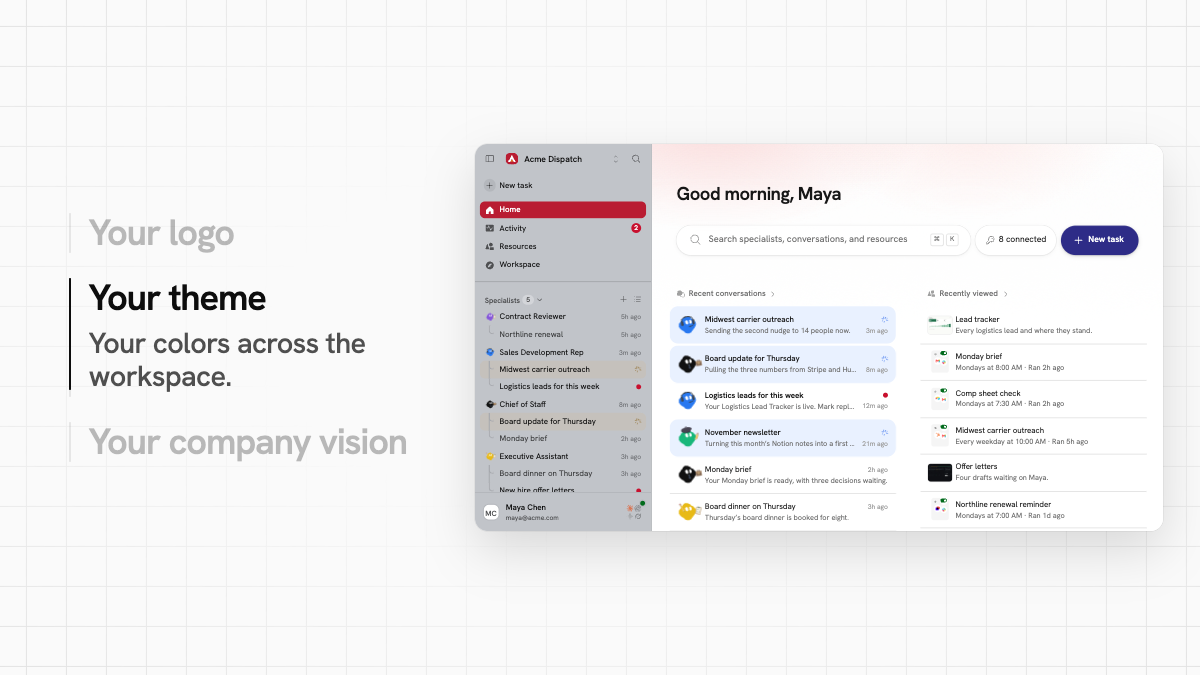
A General Input workspace has always looked like General Input. Starting this week, it can look like your company.
Admins now have a Branding page in Settings. Put your logo and the name your team uses at the top of every page, pick your colors, and choose the loading screen everyone sees when the app opens. Set it once, and every member of the workspace sees it on the web.
Your logo and your name
Upload a square logo and it sits beside your workspace's name at the top of the sidebar. Add a wide logo and it takes that spot on its own. If your team calls its workspace something other than the company name, set a product name and it shows in its place.
Your colors, from eleven presets
A theme starts from one of eleven presets, from our own gray to Plum, Pine, Harbor, and Sand, plus palettes that match the loading screens. From there you can change any of four colors:
- Window, which the sidebar wears as a soft, flat tint
- Selected item, the full-strength fill behind the page you're on
- Working color, for conversations and runs that are in progress
- Notifications, for unread counts and dots
Color goes where it helps you find your way and stays out of the rest. The sidebar takes a tint of the window color, while the selected row and unread counts take theirs at full strength. Buttons and links keep their usual color, so a theme never changes what an action looks like. The glow at the top of Home picks up your theme's colors too.
Light, dark, or each person's device
General Input now has a dark mode, and it covers every page: chat and its tool cards, menus, dialogs, settings, code, charts, and avatars. A workspace chooses light, dark, or each person's own device setting, and every member sees the same choice.
A loading screen that's yours
When anyone opens the app, they see your loading screen while it gets ready. Pick one of the scenes, each wearing your logo and name, or use a photo of your own. Pick a scene and the name at the top of your sidebar takes on its style too.
Text stays readable on any color
You don't have to be a designer to get this right. Text and badges are adjusted until they meet contrast guidelines on whatever colors you choose, and a window color that's too mid-toned to carry text is nudged lighter or darker. Pick the colors that look like your business, and General Input keeps them readable.
How to set it up
- Open Settings > Branding.
- Upload your logo and, if you like, set a product name.
- Pick a preset under Colors, then change any of the four colors.
- Choose an appearance: light, dark, or each person's device.
- Pick a loading screen.
- Click Save. Everyone in the workspace sees it from then on.
Your AI workspace is where your team works with its specialists every day. Now it can look like it belongs to you.